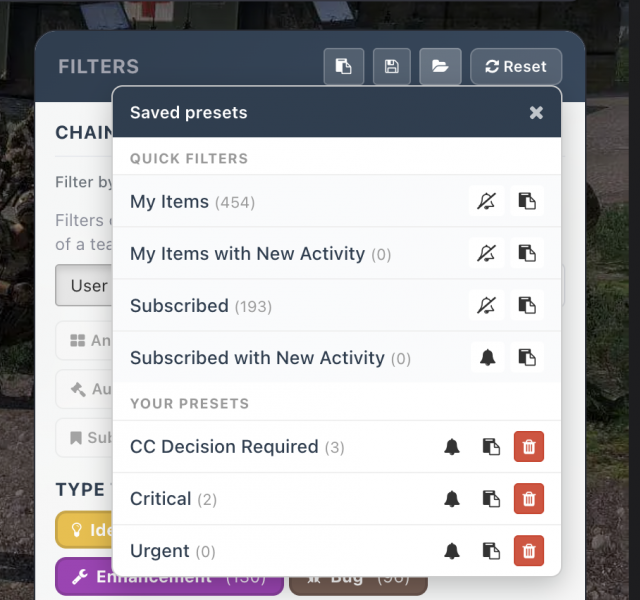


Saved Presets and Notifications
If you find yourself using the same combination of filters regularly, you can save it as a preset. Presets let you switch between your preferred views instantly, and they can also be configured to send you notifications when items matching those filters are updated.
Creating a preset
Set up the filters you want (stages, tags, responsibility, quick filters, sort order) and then click Save Preset. Give it a name that makes sense to you, like "My active items" or "Policy items in Review". Your preset will appear in the sidebar for quick access.
Presets save everything about your current filter state: which stages are included or excluded, which tags are selected, any responsibility filters, quick filter toggles, the sort order, and the search term.
Using presets
Click any saved preset in the sidebar to instantly apply that filter combination. This is especially useful if you regularly need to check on a specific area, like all items related to your team, or all items currently in Execution.
You can create as many presets as you need, and delete any that you no longer use.
Preset notifications
Each preset can have notifications enabled. When turned on, you'll receive notifications whenever items matching that preset's filters are updated. This is a powerful way to stay informed about specific areas of the Roadmap without having to subscribe to every individual item.
For example, you could create a preset that filters for all items tagged with your branch and in the Consultation or Decision stages, then enable notifications for it. You'd be automatically informed whenever those items move forward, without needing to manually check.
You can enable or disable notifications for each preset independently, so you have fine-grained control over what you're notified about.