

Relationships and Sub-items
Roadmap items don't exist in isolation. They can be connected to each other through relationships, and larger items can be broken down into smaller sub-items.
Sub-items
When a Roadmap item involves multiple pieces of work, it can be broken into sub-items: smaller, self-contained items that each go through their own stages independently. This is useful for complex proposals where different parts need different people or timelines.
On a parent item's page, you'll see a summary of its sub-items with a progress bar showing how many have been concluded. Each sub-item is a full Roadmap item in its own right, with its own Chain of Responsibility, stages, and discussion.
Creating sub-items
Sub-items can be created directly from a parent item's page. Depending on the parent's type, you may see quick-create buttons in the relationships section. These buttons are configured by J11 as part of the item type's template, and each one creates a specific kind of sub-item with its own pre-configured fields, title format, and default roles.
For example, a parent item of type "Project" might offer quick-create buttons for "Task", "Research", and "Review" sub-items. Clicking one of these takes you straight to a pre-filled submission form for that sub-item, already linked to the parent.
This makes it quick and easy to break a large item into structured pieces without having to manually create each one from scratch and link them together afterwards.
Other relationships
Items can also be linked to each other without a parent-child relationship. These links indicate that items are related in some way, perhaps one depends on another, or two items address different aspects of the same topic.
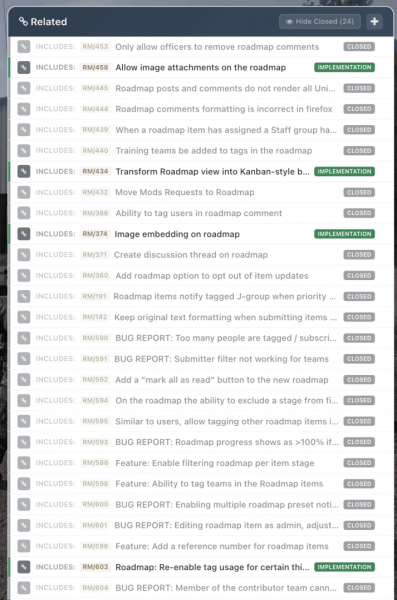
Relationships are shown in the relationships section of the item page, grouped by type. They help you see the bigger picture and understand how different pieces of work connect.
Navigating related items
Each linked item is shown with its title, stage, and reference number. Click through to view any related item. If you're working on something that relates to an existing item, adding a relationship link makes that connection visible to everyone.