What is assisted ballistics?
Assisted ballistics, as opposed to manual ballistics, is precision shooting using various tools and gadgets (like the ATragMX) that assist and even partially automate calculating the required ballistics solution.

The FM outlines our core skills, policies and guides to ensure every member stands ready for the mission ahead.
FM/G84 · Long range shooting
Assisted ballistics, as opposed to manual ballistics, is precision shooting using various tools and gadgets (like the ATragMX) that assist and even partially automate calculating the required ballistics solution.
Open the AtragMX, select Gun List and choose the bullet you will be using for the mission.
If your bullet isn’t present, you’ll have to select Add New Gun and input the values yourself.
Even if your gun is present, the values saved in your device may be inaccurate, so always double check that values in the AtragMX correspond to the ones in your range card.
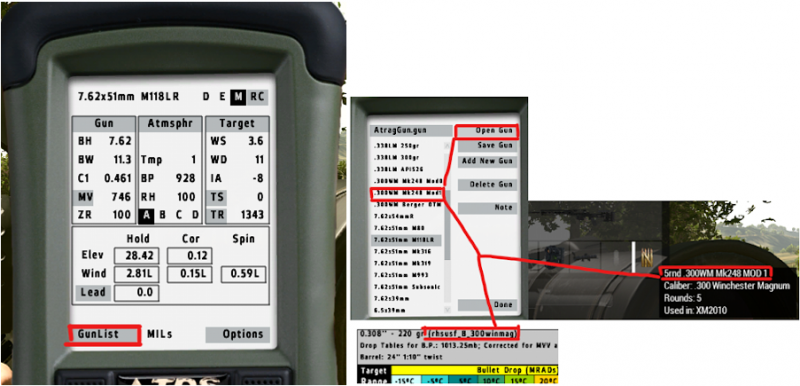
The Range Card contains several details needed for accurate ATragMX setup.
Four details requiring entry use imperial units:
Press "E" on the top right corner of your AtragMX main screen to input these 4 imperial units.
One additional value is in metric units:
Press "M" on the top right corner of your AtragMX main screen to input metric units.
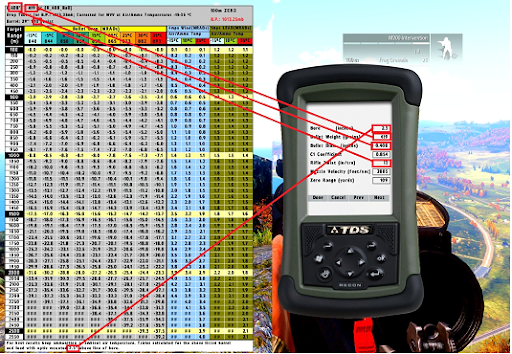
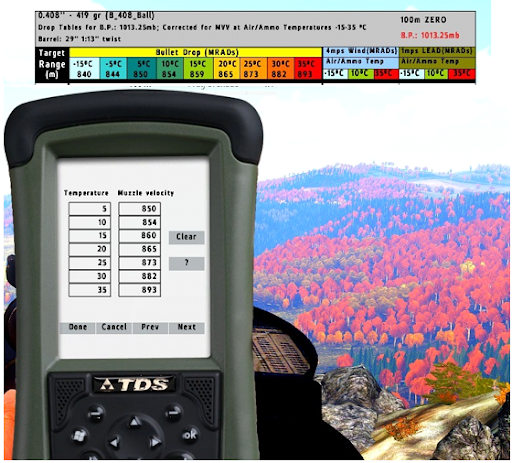
To obtain an accurate muzzle velocity through all temperatures, utilize the ATragMX muzzle velocity table feature by navigating to:
On the corresponding screen, enter a range of temperatures and corresponding muzzle velocities, using values on the range card as shown below.
Ballistic coefficient is a measure of how easily a bullet cuts through the air. This metric is critical for precisely calculating the arc of a bullet in flight.
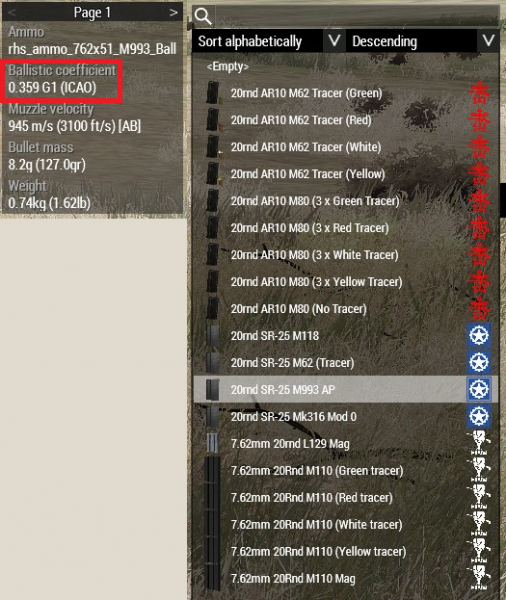
To find C1 ballistic coefficient, open the arsenal and select the desired bullet. With the ammunition highlighted, the ballistic coefficient will be displayed in the top left corner, alongside other bullet information.
Note: although G1 coefficient (displayed in arsenal) and C1 coefficient (displayed in ATragMX) are essentially identical, if the arsenal displays a G7 ballistic coefficient, this must be converted using an online calculator.
G7 to G1/C1 Conversion
To convert a provided G7 ballistic coefficient to a G1 or C1 format, you will need to collect information from your range card or the arsenal:
JBM Ballistics offers a simplistic conversion tool, free of use (https://jbmballistics.com/cgi-bin/jbmgf-5.1.cgi).
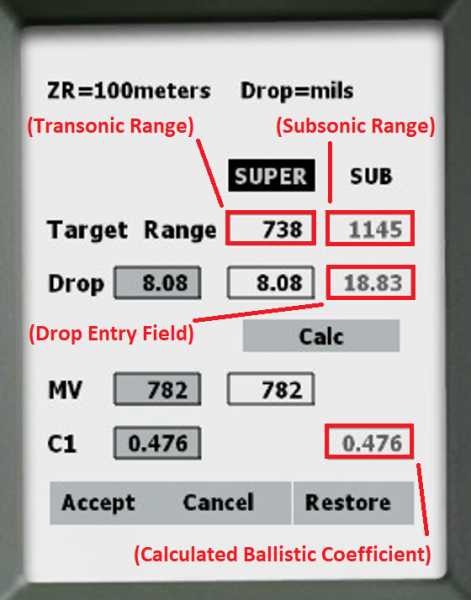
Atmospheric drag of any object in motion is not a fixed value, rather it changes significantly depending on speed. The transition from supersonic to subsonic velocities in particular can produce a vast difference in atmospheric drag, which becomes a relevant consideration for sniper teams engaging at extended distances.
The singular C1 ballistic coefficient provided by the arsenal (measured at the muzzle) only accurately accounts for close and moderate distances.
To ensure accurate bullet drop at all ranges, we will need three data points input into our ATragMX:
Fortunately, the ATragMX will provide us with the additional data, all we need to do is take shots at prescribed ranges and input the bullet drop.
Resetting the Drag Coefficient Table
The ATragMX may autogenerate a ballistic coefficient table. We will clear this to ensure accurate manual entry.
To open the Drag Coefficient Table, Options > Drag Coef Table
Transonic Ballistic Coefficient
To open the drop truing tool, Options > Truing Drop.
Subsonic Ballistic Coefficient
To open the drop truing tool, Options > Truing Drop.
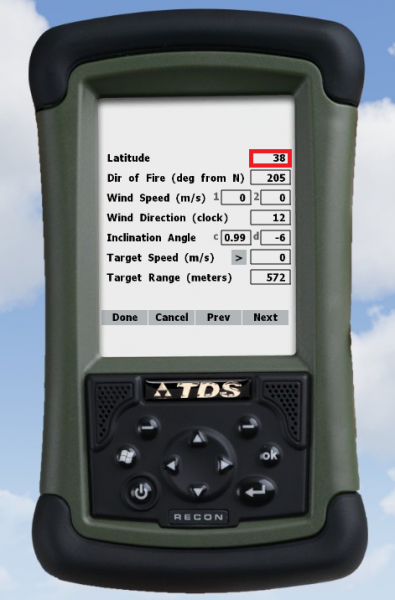
An accurate Latitude permits compensation for the Coriolis effect, an important component of a ballistic solution when ranges extend beyond those typical to riflemen.
Map latitude in Arma 3 does not always correlate with real word locations, rather this information is manually populated by map makers and is persistent for an entire map. Latitudes for common UNITAF campaigns are listed below:
| UNITAF Campaign (Examples) | Map Name | Latitude |
|---|---|---|
| Operation Black Flag | Takistan, Takistan Mountains | 35° |
| Operation Deadlock | Lingor v3.9.5 | -4° |
| Operation Everglade | Rosche, Germany (2.0) | 53° |
| Operation Everyman | Armavir | 44° |
| Operation Fault Line | Lythium | 34° |
| Operation Fulcrum | Uzbin Valley | 34° |
| Operation Guardian Angel | Island Panthera | 46° |
| Operation Hetman | Livonia | 54° |
| Operation Honeybadger | Reshmaan Province | 35° |
| Operation Polaris | Altis | 40° |
| Operaton Quantum | Kingdom of Regero | 39° |
| Operation Steadfast Resolve | G.O.S. Al Rayak | 36° |
| Operation Valiant Guardian | Beketov | 55° |
Note: to display Coriolis and spin drift sub-components of the final ballistic solution, press Options > Show Cor in the AtragMX.
Input and confirm equipment information entered into the ATragMX, including:
Use your Kestrel to find the current atmospheric temperature, pressure and humidity at your firing position.
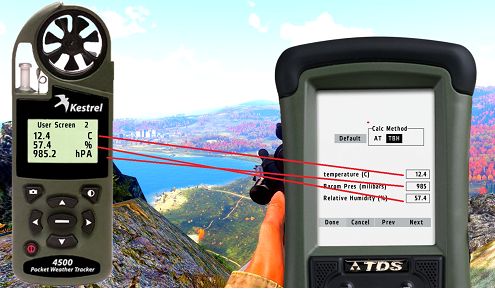
Measure using the Kestrel and enter readings for the following values as appropriate at each new firing position:
Measuring Wind
For wind speed, use Screen 1 of your Kestrel. For wind direction, press Shift + K to display the wind direction indicator.
For an accurate wind reading, face directly into the wind (the arrow in the top left corner will be vertical, pointing down).
Ensure no obstructions are present to ensure accurate wind speed readings.
Wind speed will always be entered in the “Wind Speed (m/s)” field labelled “1”, representing wind speed at the shooting position. For field “2” input the same value as field “1”.
Interpreting Direction
The AtragMX accepts wind direction in clock direction values as read when facing the target. See Wind: reading direction FM/BG-576 for further guidance. The determined clock direction value will be manually entered into the “Wind Direction (clock)” field in the AtragMX as depicted below.
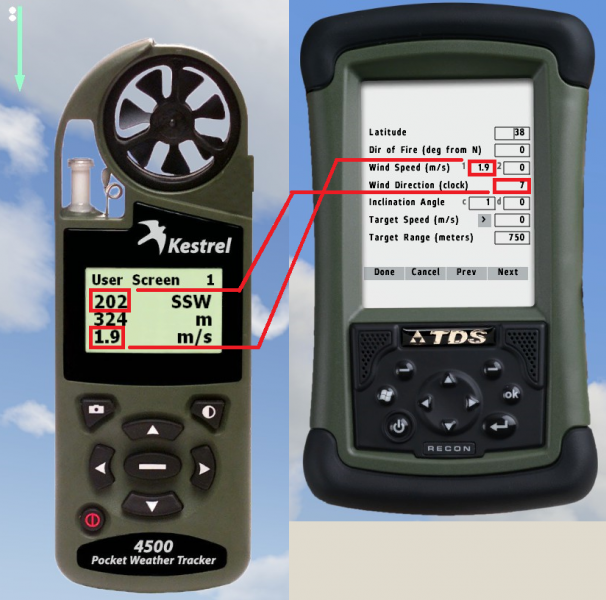
Measure wind readings using the Kestrel and convert them to enter into the ATragMX, including the following parameters:
The ATragMX offers a time expedient and field-practical tool to accurately eliminate moving targets, even when target speed is unknown. To open the speed estimation tool, navigate to:
Decide upon a number of MRADs to time the target against.
Tip: This tool is best utilized in a team context, one observing target movement and calling “start/stop”, and the other working the ATragMX.
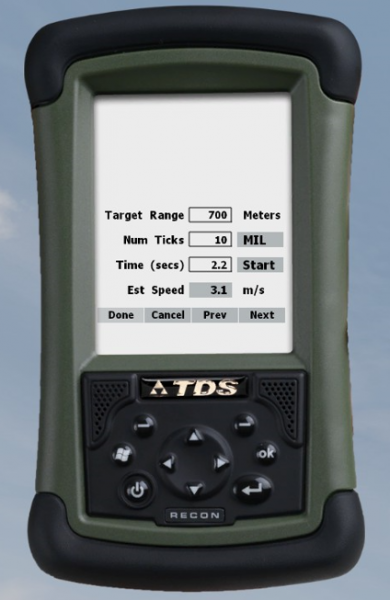
Utilizing both the ATragMX Target Speed Estimation screen and a mil-dot scope:
Account for range to target according to Vector 21: Ranging FM/BG-625 and/or Milliradians: Mil-relation formula FM/BG-522.
The final firing solution will be displayed in the bottom left of the ATragMX main screen as highlighted below:
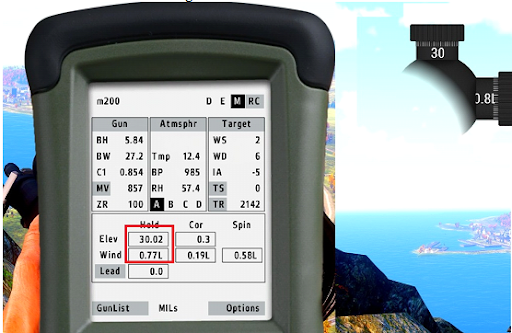
Consider the limitations of the ATragMX suite alongside changes in environmentals as a bullet travels downrange and adjust ballistic solutions as appropriate.
On 2 role cards in 1 combat area.
By combat area
 Marksmanship
2 of 7
Marksmanship
2 of 7
Next in Long range shooting
FM/G80 Manual ballistics