
Set up a short range
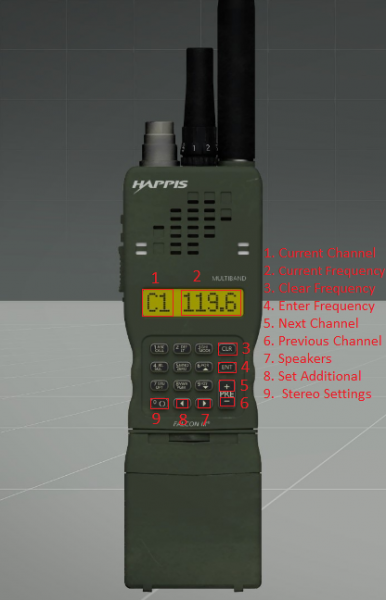
During any operation that requires it, you'll be provided with an AN/PRC-152. It is the short range radio used by all elements. The main frequency is the channel (C1, C2,…) that is currently selected on the radio.
To set up your main frequency:
- Check with your leader or in the ORBAT what frequency you should be on
- Hover with your mouse on your current frequency (2) and type the desired frequency; eg. 271
- Click the ENT (4) button to enter (save) the frequency
- Check in with your team to see if the radio is working properly
Using the AN/PRC-152 you can also set up an additional frequency to communicate with other elements that aren't your own. The additional frequency is set manually and will show as “A#” in place of the channel name e.g. If channel 2 is selected as the alternate frequency, it will become A2.
To set up an additional frequency:
- Click the + button (5) to select the desired channel.
- Click the left arrow button (8) to set an additional channel.
- At this point you should read A# (# being the channel number) instead of C#, next to the frequency number.
- Type the wanted frequency you want to use as additional; eg. 270
- Click the ENT (4) button to enter the frequency
- Click the - button (6) to return to your main frequency
If you want to dictate which ear you want the audio for your main and alternate channels to come out from, select the frequency you want to adjust and click the 0(9) button to modify the stereo settings. On the bottom right of the screen, you'll see an indicator that says either "left", "right" or "left and right". Ensure you do this for both your main and alternate channels on any radios you're using.
Now you should be able to hear both frequencies in different ears.